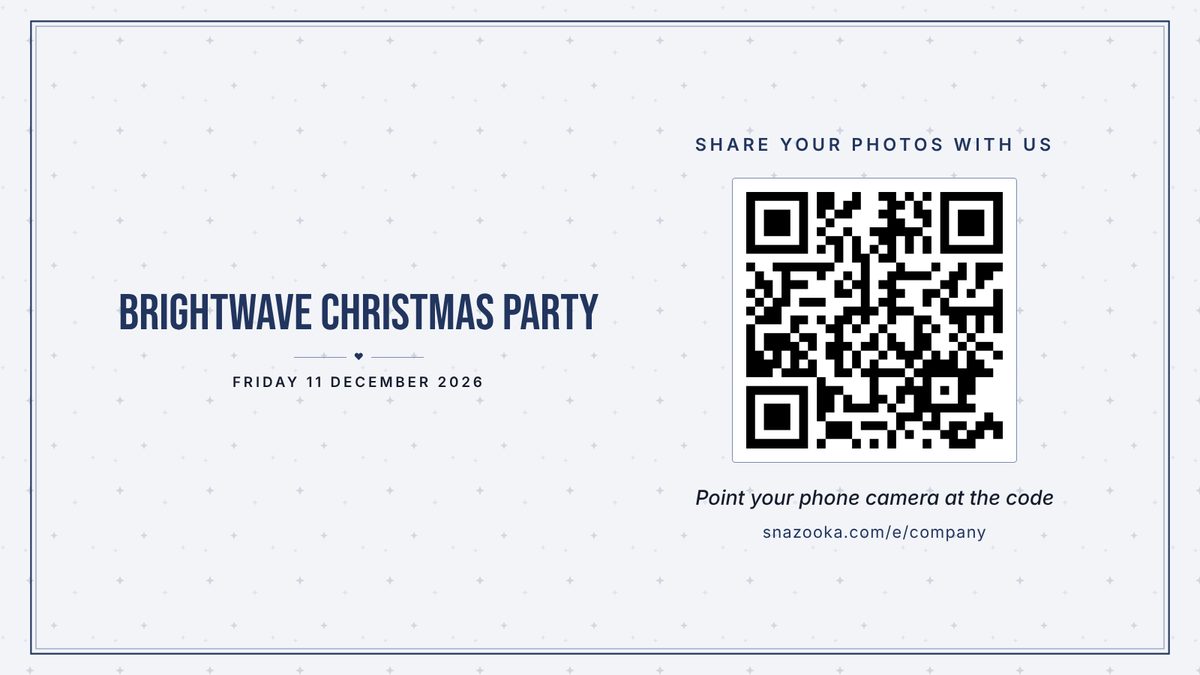
Your staff scan a QR code on the table and the photos they take go up on the screen in the function room, with your logo on it. Nothing goes up that you haven't approved, if you'd rather, and the morning after you have every photo from the night in one place for the newsletter.
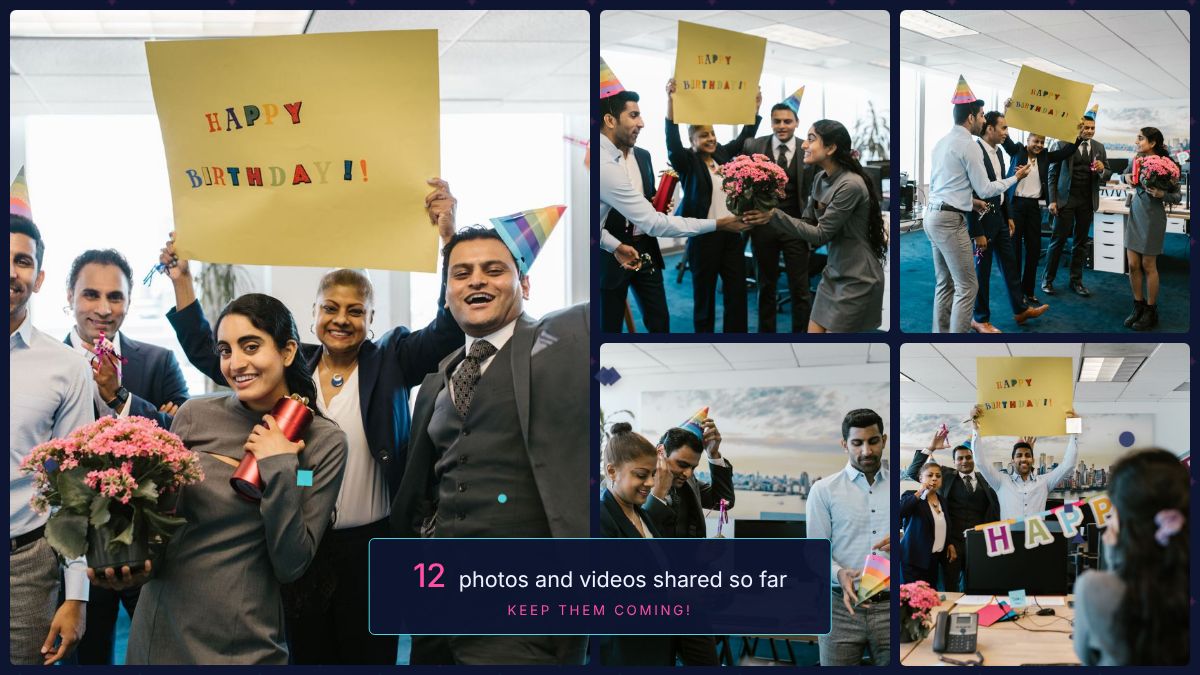
Photo sharing for the whole office, from the first drink to the last dance, with everything on the big screen as it happens.
This is the first thing HR asks about, and it's covered.
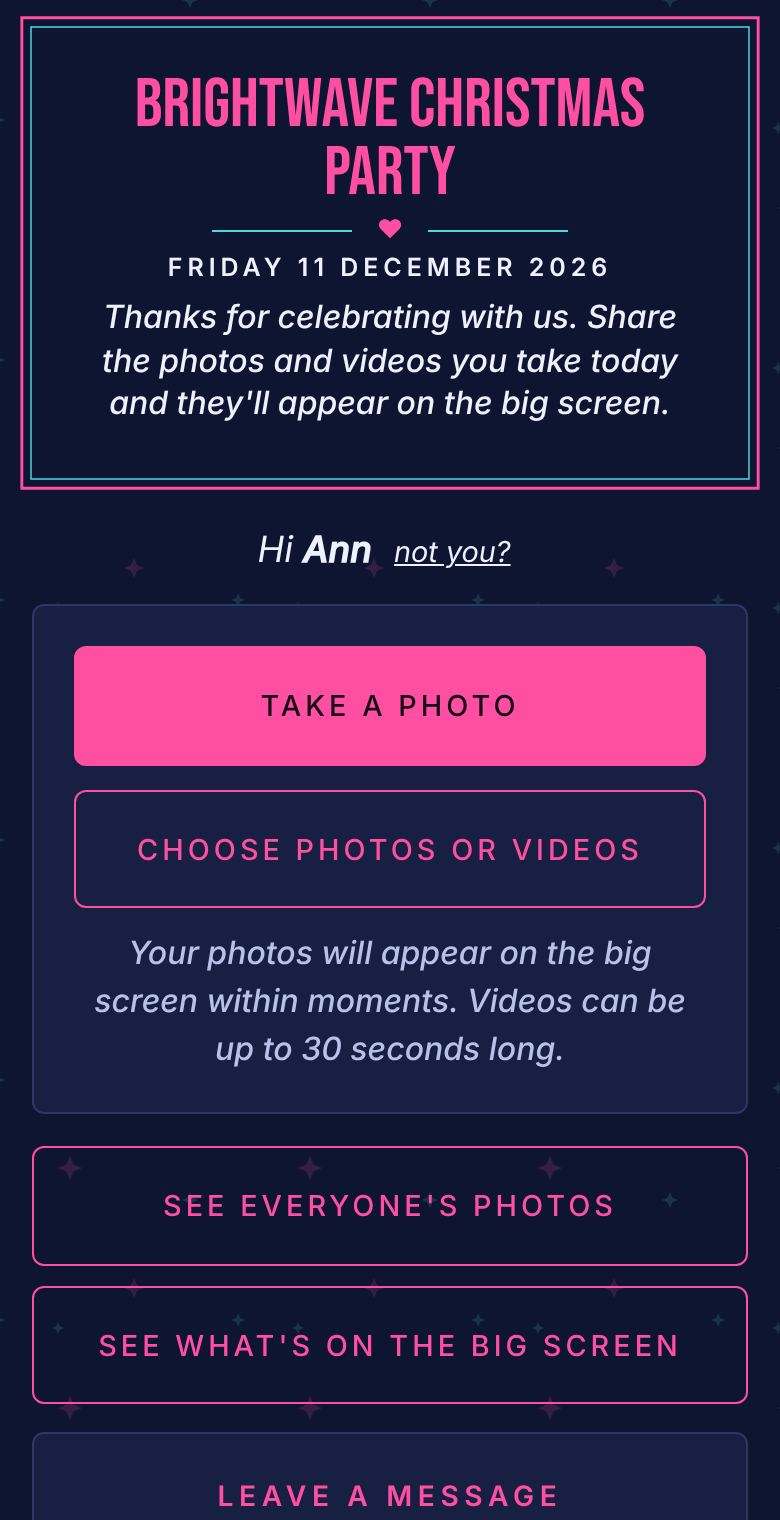
Upload your logo when you set up the event and it sits above the heading on the screen, on the page staff see on their phones, and on the printed QR cards. Pick one of the colour schemes or set your own brand colours, and see every change as you make it.
A screen and a way to show a web page on it. Most hotels and function rooms have a TV or a projector: plug a laptop into it with an HDMI lead, open your event's screen address, and click once for full screen. A smart TV's own browser works too. Our big screen guide covers every way of connecting and what to ask the venue.
Hotel Wi-Fi is often at its worst when the room is full, so Snazooka is built for it. Staff upload over their own phone data, an upload keeps trying for half an hour if the signal drops, and the screen keeps showing what it already has. A phone hotspot for the laptop is plenty for the screen.
A smaller team in a pub function room needs nothing more than the pub's TV and a laptop. Put a card on each table and one at the bar.
A big company in a hotel ballroom might want two screens, one by the stage and one by the bar. Open the same screen address on both and they show the same photos. The Event plan takes up to 2,000 photos and 100 videos, which covers a big night comfortably.
One price for the whole party, however many staff: the Event plan is €24.99 €29.99 including VAT. Pay by company card at checkout and the receipt, showing the VAT, comes by email. If you need a purchase order and an invoice instead, email hello@snazooka.com. More about pricing.
On Google Cloud servers in the EU. They're private to your event, never used for advertising and never sold, and we delete the whole event 90 days after uploads close, with a reminder to download first. If your company needs one, we'll sign our data processing agreement. For awards nights, conferences and the rest of the year, see company events.
They scan the QR code on the table or on the screen with their phone camera, type a first name, and start sharing. There's no app to download and no account to make, so it works on work phones and personal phones alike.
Turn on approval and nothing is shown until an admin has said yes from their phone. Even without approval, any admin can hide a photo in two taps and it disappears from the screen at once.
Yes. Upload your logo and it appears on the screen, the page staff see on their phones and the printed QR cards. Choose a colour scheme or set your own brand colours.
No. It's one price for the party, the same for twenty staff or three hundred.
The checkout emails a receipt showing the VAT as soon as you pay. If your finance team needs a purchase order and an invoice, email hello@snazooka.com.
Yes. Download every photo and video at full size in one go from your event's page. Hide or delete anything first that shouldn't go any further.
Usually, yes. Staff upload over their own phone data, and uploads keep trying for half an hour if the signal drops. The screen only needs a modest connection, and a phone hotspot is enough.
More answers in the questions on the home page.